
Crumbs, dust and skin oils build up fast under laptop keys. A dirty keyboard can feel sticky and look dull. Learn to clean a laptop keyboard safely in minutes with a few cheap tools.
To learn how to clean a laptop keyboard, shut it down and unplug it first. Tilt it to about 75 degrees and blow dust out with short bursts of air. Wipe the keys with a soft cloth lightly dampened with 70% isopropyl alcohol. Leave it to dry for 10 to 15 minutes before you switch it on.
At a Glance
- Shut the laptop down and unplug it before you touch the keys.
- Use short bursts of air and a lightly dampened soft cloth.
- Use 70% isopropyl alcohol on the cloth, never spray liquid on keys.
- Dry the keyboard for 10 to 15 minutes before you switch it on.
- After a spill, leave it to dry for at least 48 hours.
What You Need Before You Start
Start with a small kit that costs a few pounds in most UK shops. You need a can of compressed air and a microfibre cloth laptop makers recommend for keys. Add cotton swabs and a small soft brush for tight gaps.
Good laptop keyboard cleaning starts with dry tools before any liquid. Check your manual for your key type before you lift any key. Most modern laptops use low-profile keys that sit close to the base.
- Can of compressed air with a thin straw
- Soft lint-free microfibre cloth, clean and dry
- 70% isopropyl alcohol in a small bottle
- Cotton swabs for the gaps round each key
- Small soft brush for loose dust and crumbs
- Bowl of clean water for a Surface cloth
How to Clean a Laptop Keyboard Step by Step
Work through the keys in order and keep liquid off the base. Each step takes a minute or less. The full clean takes about 10 to 15 minutes. That patience is how to clean a laptop keyboard without breaking a key.
- Shut the laptop down, unplug it and remove the battery if you can.
- Tilt the laptop to about 75 degrees over a clean surface.
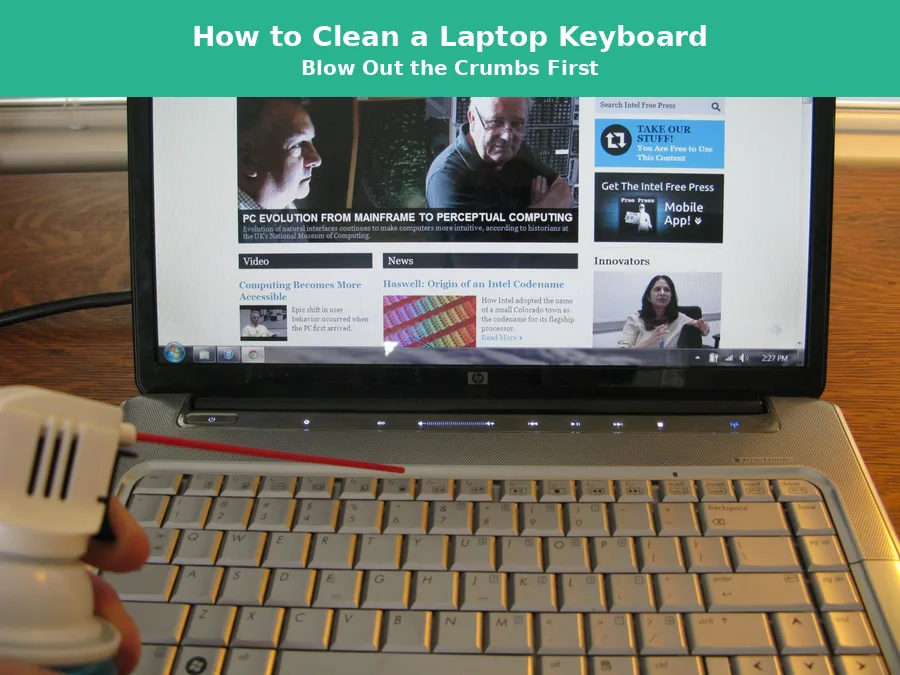
- Blow short bursts of air across the keys, straw half an inch away.
- Brush loose crumbs out of the gaps with a small soft brush.
- Dampen the cloth with 70% isopropyl alcohol and wipe each key.
- Clean round sticky keys with a cotton swab, lightly dampened.
- Leave the keyboard to dry for 10 to 15 minutes before use.
Hold the can upright for a compressed air laptop keyboard clean. Keep the straw half an inch from the keys as you clean laptop keyboard rows. Never tilt the can, since cold liquid can spray out and chill the keys.
An isopropyl alcohol keyboard wipe suits most makers, as the table below shows. Never spray liquid straight onto the keyboard or into the gaps. Use a clean cloth section for each pass, so dirt does not spread.
What Each Laptop Maker Allows
Each maker sets its own rules, so check yours before you start. Most allow 70% isopropyl alcohol on a soft cloth. Apple sets out its rules in Apple’s guide to cleaning its products.
| Maker | OK to use | Do not use |
|---|---|---|
| Apple | 70% isopropyl alcohol wipes; 75% ethyl alcohol wipes | Bleach, hydrogen peroxide and aerosol sprays |
| Microsoft Surface | Five parts water to one part mild soap; 70% or less isopropyl alcohol | Bleach and strong solvents |
| Dell | Microfibre cloth with 70% isopropyl alcohol and 30% water | Bleach, ammonia and glass cleaner |
| HP | Isopropyl alcohol 70% or higher on a microfibre cloth | Bleach, acetone and solvents |
| Lenovo | Isopropyl alcohol on a soft cloth; wipes with up to 0.5% hydrogen peroxide | Ethyl alcohol and air compressors |
To clean MacBook keyboard surfaces, use 70% isopropyl alcohol wipes or 75% ethyl alcohol wipes. Microsoft Surface needs five parts water to one part mild soap for a damp cloth. Dell pairs 70% isopropyl alcohol with 30% water on a microfibre cloth.
Apple also allows Clorox Disinfecting Wipes on hard nonporous surfaces. Lenovo allows wipes with up to 0.5% hydrogen peroxide, but no ethyl alcohol. HP uses isopropyl alcohol 70% or higher on a microfibre cloth.
How to Fix a Sticky Key Without Breaking It
A sticky key on laptop keyboards often comes from a spill or crumbs below the key. Work round the edges first, since most keys pop off with force. Take a layout photo first, so you can put each key back in place.
Dampen a cotton swab lightly with isopropyl alcohol for the edges. Wipe round the key and press it a few times to free the spring. Let the alcohol dry fully before you test the key again.
Do not remove keys unless your manual says it is safe. If a key still sticks after two tries, leave it for a repair shop. Forcing a key can snap its clips and turn a small job into a repair bill.
What to Do If You Spill a Drink on the Keyboard
Act fast, since liquid spreads under the keys in seconds. Power the laptop off at once and unplug it from the mains. A spilled water on laptop keyboard accident needs blotting, not rubbing.
Turn the laptop upside down over a towel and let liquid drain out. Blot the keys with a dry cloth and do not use a hair dryer. Leave the laptop to air dry for at least 48 hours before you switch it on.
Sugary drinks leave a sticky residue that water alone will not shift. If liquid went inside the case, book a service check before you use it. That is how to clean a laptop keyboard after a spill, done right.
What Never to Use on a Laptop Keyboard
Some cleaners strip key legends and melt plastic, so skip them all. No maker in our checks recommends cleaning gel, so leave it on the shelf. When in doubt, use a dry cloth and plain air only.
- Bleach, which strips key legends and harms plastic
- Ammonia and glass cleaner, which streak and corrode keys
- Acetone and solvents, which melt plastic fast
- Household vacuum at full power, which risks static damage
- Paper towels, which shed fibres and scratch keys
- Aerosol sprays aimed straight at the keyboard
- Ethyl alcohol on a Lenovo, which the maker bans
Apple also bans hydrogen peroxide and paper towels on its keyboards. Lenovo bans air compressors, since the blast can harm keys and fans. Keys are among the overlooked spots during cleaning in many homes.
How Often to Clean Your Laptop Keyboard
How often to clean laptop keyboard surfaces depends on how you use it. A quick weekly wipe keeps dust down, while a monthly deep clean clears the gaps. Heavy users and pet owners may need to clean more often.
| Routine | When | What to do |
|---|---|---|
| Weekly quick wipe | Once a week | Wipe keys with a dry microfibre cloth |
| Monthly deep clean | Once a month | Air, brush and damp wipe each key |
| After a spill | At once | Power off, blot and dry for 48 hours |
A weekly wipe takes two minutes and stops dust from packing under keys. A monthly clean suits most home users and most office workers. That routine is how to clean a laptop keyboard week after week.
When Cleaning Is Not Enough
Some faults sit below the keys, where no cloth can reach them. Dead keys, repeat letters and a dead row point to a fault inside. A laptop keyboard repair may then cost less than a new laptop.
Under the UK Consumer Rights Act 2015, goods must be of satisfactory quality. A faulty keyboard in a new laptop may qualify for repair, replacement or refund. Our guide to UK consumer rights on refunds, returns and repairs explains the steps.
Get a quote before you agree to any work on the laptop. Back up your files first, since a repair can wipe the drive. This guide gives general information only, not legal advice.
Give Your Keyboard Five Minutes and It Will Feel Brand New
Now you know how to clean a laptop keyboard without risk to the keys. A clean keyboard types better, looks better and lasts longer. Put the kit in a drawer and use it each week.
Good care goes past the keys, so keep your devices safe with the same simple habits. Small steps also help you extend your phone battery life between charges. Start tonight and your next typing session will feel fresh.
Frequently Asked Questions
Can I use water to clean a laptop keyboard?
No, water alone can seep under keys and harm the board. Use a cloth lightly dampened with 70% isopropyl alcohol instead. For a Surface, use five parts water to one part mild soap.
How long does it take to clean a laptop keyboard?
A quick wipe takes about two minutes from start to finish. A full deep clean takes about 10 to 15 minutes, drying time included. That is how to clean a laptop keyboard the safe way, step by step.
Can I clean a keyboard without removing the keys?
Yes, most cleans need no key removal at all. Work with a swab and a brush to clean keyboard without removing keys. Take a layout photo first if you do lift a key.
What should I do after a spill?
Switch the laptop off at once and pull the plug out. Blot the keys with a dry cloth and keep the lid open. Wait at least 48 hours before you switch it on again.
Is it safe to use compressed air on a laptop?
Yes, short bursts from an upright can are safe for most laptops. Hold the can upright and keep the straw clear of the keys. Never use a household vacuum at full power, since static can harm keys.
Which cleaner is safest for a MacBook keyboard?
Apple allows 70% isopropyl alcohol wipes on hard nonporous surfaces. Skip bleach, hydrogen peroxide, aerosol sprays and paper towels. Check Apple’s own guide before you try any new wipe or spray.
